

Why Meetings inside GetAccept matter
Deals don’t move forward because you shared more content. They move forward because the buyer feels clear, aligned, and confident.
But most sales cycles still suffer from the same gap: what happened in the meeting gets lost right after the meeting.
- Meeting notes live in personal docs
- Action items are buried in email threads
- New stakeholders join late and have no context
- Reps rewrite summaries from scratch (or don’t do it at all)
Meetings in GetAccept fixes that by keeping the meeting record where the deal already lives.
Instead of treating meetings as separate events, you turn them into part of the deal story, one buyers and sellers can actually follow.
What “Meetings” is in a Digital Sales Room
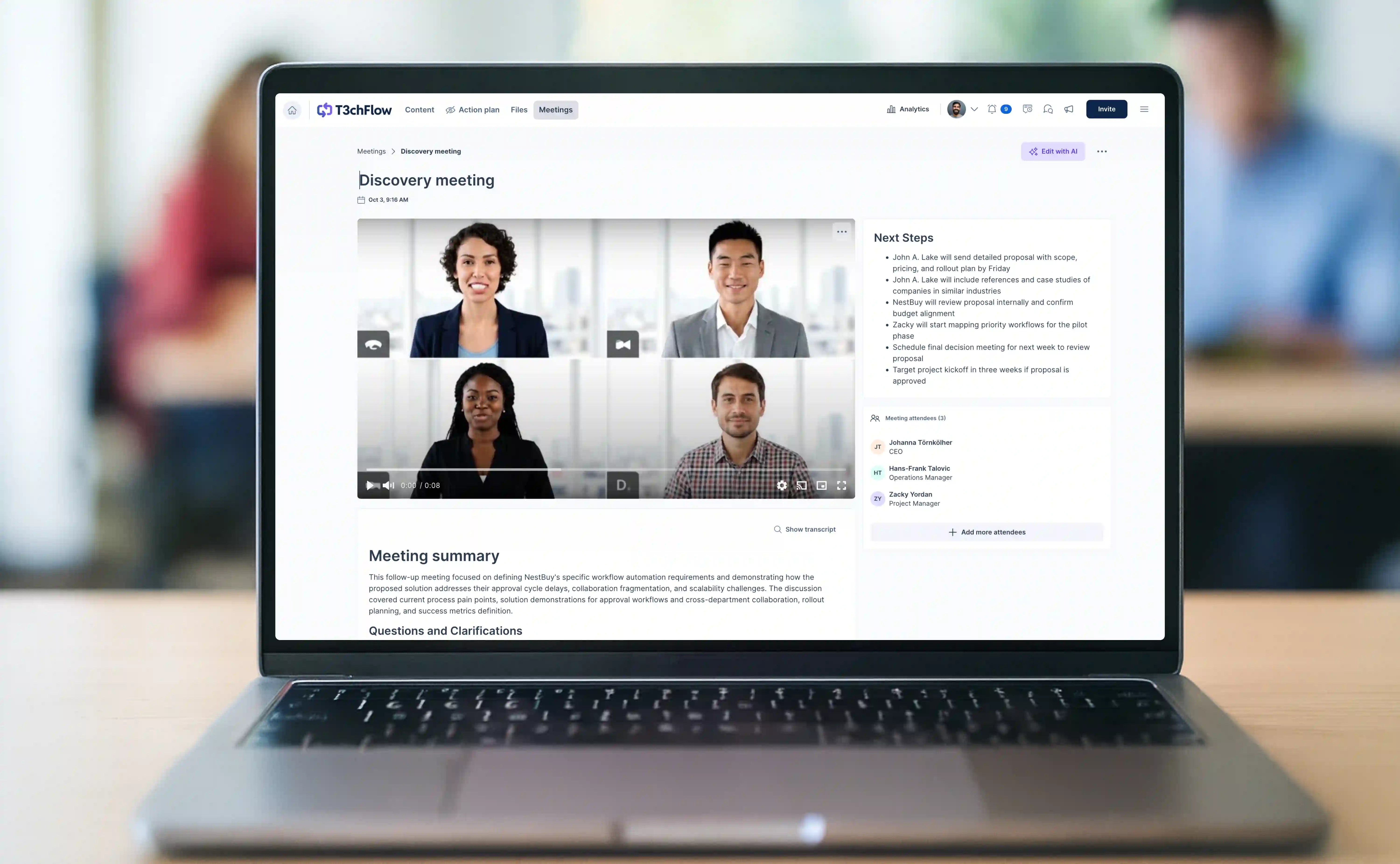
Meetings is a dedicated section inside a GetAccept DSR where you can store:
- meeting recordings
- transcripts
- summaries and key points
- next steps and action items
Both sellers and buyers can view the meeting content in the room. Analytics are visible to sellers only.
This gives you continuity between calls, and it also gives the buyer a single place to catch up and stay aligned.
The three ways to add a meeting (and when each one makes sense)
1) Add from connected tools
If you use meeting or conversational intelligence tools (such as Microsoft Teams, Zoom, Gong, Salesloft, Glyphic, Garba, and more) you can pull meetings directly into GetAccept.
Use this when:
- your org already relies on a meeting platform as the system of record
- you want the fastest path to consistent meeting capture
- you want transcripts to arrive in a machine-readable format that AI can use
Practical example
A rep finishes a discovery call in Gong. The meeting is pulled into the GetAccept DSR, summarized, and shared with the buyer the same day. No manual recap doc. No copying and pasting.
2) Add from transcript
You paste a transcript, then GetAccept AI generates a summary and next steps. You can also refine the output of the recap using AI prompts.
Use this when:
- You use a meeting tool that doesn’t integrate with GetAccept
- you have transcripts from another source
- you want a recap fast, but still tailored to your process
Practical example
A buyer asks, “Can you share a recap of what we agreed on?” Instead of writing a summary from scratch and sending it via email, the rep uploads the meeting transcript to GetAccept and uses GetAccept AI to produce a clean summary and action points, both of which are stored in the shared space where the buyer and the seller have been collaborating throughout the deal.
3) Create an empty meeting
You add a title and date manually.
Use this when:
- there is no meeting transcript or recording
- you want a lightweight meeting log for key decisions and next steps
Practical example
A short internal call happened without recording. The rep still adds a meeting entry with a short summary and next steps so the room timeline stays complete.
.jpg?width=5600&height=3733&name=pexels-diva-plavalaguna-6147016%20(1).jpg)
What good meeting content looks like
A strong meeting entry is not a full transcript dump. It’s a clear record that someone can skim and trust.
A good recap usually includes:
- the buyer’s goal and success criteria
- the main decisions that were made
- the open questions or risks
- next steps with owners and due dates (when possible)
How admins make Meetings scalable
Meeting recaps become valuable when they’re consistent. That’s hard to achieve if every rep summarizes in a different style.
Admins can improve this in two ways:
1) Set up meeting integrations
Connected tools reduce friction and increase coverage. When meetings flow into the room automatically, reps don’t need a separate process.
This is especially important if you want meeting data to be structured and usable over time, not just stored as one-off notes.
2) Create shared meeting prompts and set a default
Admins can create shared prompts that the whole org can use when summarizing meeting transcripts. You can also set an entity-level default prompt so imported meetings start with the right structure automatically.
Why this matters:
- it aligns summaries to your sales process
- it saves reps time (the right prompt runs first)
- it improves the buyer experience (recaps look consistent and professional)
Important detail: a default prompt is preselected, not locked. Reps can still choose another prompt if they need a different style.
Best practices for meeting prompts
Meeting prompts determine how AI turns transcripts into summaries that people actually read and trust. A good prompt reflects why the meeting happened and what should happen next, not just what was said.
When prompts are unclear, summaries tend to be generic. When prompts are intentional, meeting notes become a reliable extension of your sales and delivery process.
General guidelines
- Anchor the prompt in the purpose of the meeting
- Ask for decisions, risks, and next steps, not just a recap
- Write summaries for someone who did not attend
- Keep buyer-facing language clear and factual
As an admin, aim to create a small set of shared prompts that match your most common meeting types, and set one sensible default.
Example prompts by meeting type
- Discovery call
“Summarize this discovery call in 6 bullet points. Include the buyer’s goals, challenges, current situation, success criteria, key questions, and agreed next steps. Keep it concise and buyer-friendly.” - Stakeholder or decision-maker session
“Create a recap of this stakeholder meeting. Highlight who attended and their roles, main priorities or concerns raised, decisions made, open risks, and next steps with ownership. Write this for an executive stakeholder joining later.” - Q&A or technical deep dive
“Summarize this Q&A session. Group key questions by theme, list the answers provided, and clearly note any follow-ups or unresolved topics. Keep the tone factual and avoid marketing language.” - Pricing or commercial discussion
“Summarize this pricing discussion. Include pricing structure, assumptions, buyer concerns, constraints or conditions mentioned, and agreed next steps toward approval or contract.” - Onboarding or implementation meeting
“Create an onboarding recap. Include goals, timeline, responsibilities on both sides, milestones, risks or dependencies, and next steps. Keep it concise and avoid internal jargon.”
💡 Admin tip
Set a default prompt that fits your most common meeting type, often a discovery or general recap. Reps can still choose another prompt when needed, but starting with the right default removes friction and improves consistency across Deal Rooms.
The goal is not to control every summary, but to make the right summary the easiest one to create.

The buyer experience: why this builds credibility
Buyers don’t love being asked the same question twice. They also don’t love chasing context across email threads and attachments.
A Digital Sales Room with meeting recaps feels like a well-run process:
- new stakeholders can catch up without scheduling another call
- buyers can confirm what was agreed and what happens next
- follow-ups feel grounded in reality, not generic
Practical example
A finance stakeholder joins late to review pricing. They can open the last meeting recap and immediately see the commercial context, timeline, and what was already agreed, without asking the rep to resend notes.

Meeting Analytics: follow up based on facts, not guesswork
Once meetings are published and shared in a room, Meeting Analytics show how that content is being consumed.
You can see:
- total views
- unique viewers
- average time spent
- a breakdown of who viewed and who didn’t
Analytics are visible to internal users only.
How to use this in real life:
- If the champion viewed the recap but the decision-maker didn’t, you probably don’t have alignment yet.
- If nobody viewed the meeting, your follow-up might need a clearer “why this matters” message.
- If engagement spikes right before a scheduled call, stakeholders are likely preparing. That’s a good moment to tailor your agenda.
Practical example
You share a meeting recap with next steps. Two people view it, but legal doesn’t. Before asking for contract review, you can send a targeted chat message: “The recap includes the security and data points we discussed. Can you confirm it looks right before we move to the agreement?”

Example in practice: T3chFlow
After a call, T3chFlow’s reps used to send emails to their prospects where they manually summarized what was discussed during the meeting. It worked, but it was slow, inconsistent, messy and easy to skip when deals got busy.
They changed the workflow:
- meetings were pulled in from their meeting tool
- the admin set a shared default prompt for summaries and action items
- reps published the recap in the room after every key call
The result was a Digital Sales Room that stayed current without extra admin work. Buyers could see what was discussed, what was decided, and what came next. Managers also had more confidence that deals were being run consistently, because the meeting trail was visible and easy to follow.

Recap
Bringing meetings into GetAccept helps you turn scattered conversations into a clear deal narrative.
- Add meetings from connected tools, from transcript, or as a simple manual entry
- Use AI to generate consistent summaries and action points without rewriting from scratch
- Admins can create shared prompts and set a default prompt so every recap follows the same structure
- Meeting Analytics show who actually consumed the meeting content, so you can follow up with better timing and fewer assumptions
If your Digital Sales Room is the buyer’s hub between meetings, Meetings is what keeps that hub honest and up to date.