

Why pricing tables matter more than people think
Most pricing problems don’t come from bad math.
They come from inconsistent inputs:
- Reps type product names differently
- Pricing changes, but old templates keep getting reused
- Discounts and tax are applied differently by different people
- CRM and Digital Sales Room tools drift out of sync
A strong pricing setup fixes this. It creates one clean path from your product catalog to the proposal your buyer sees, with fewer manual edits and fewer surprises.
The building blocks of pricing in GetAccept
Pricing tables
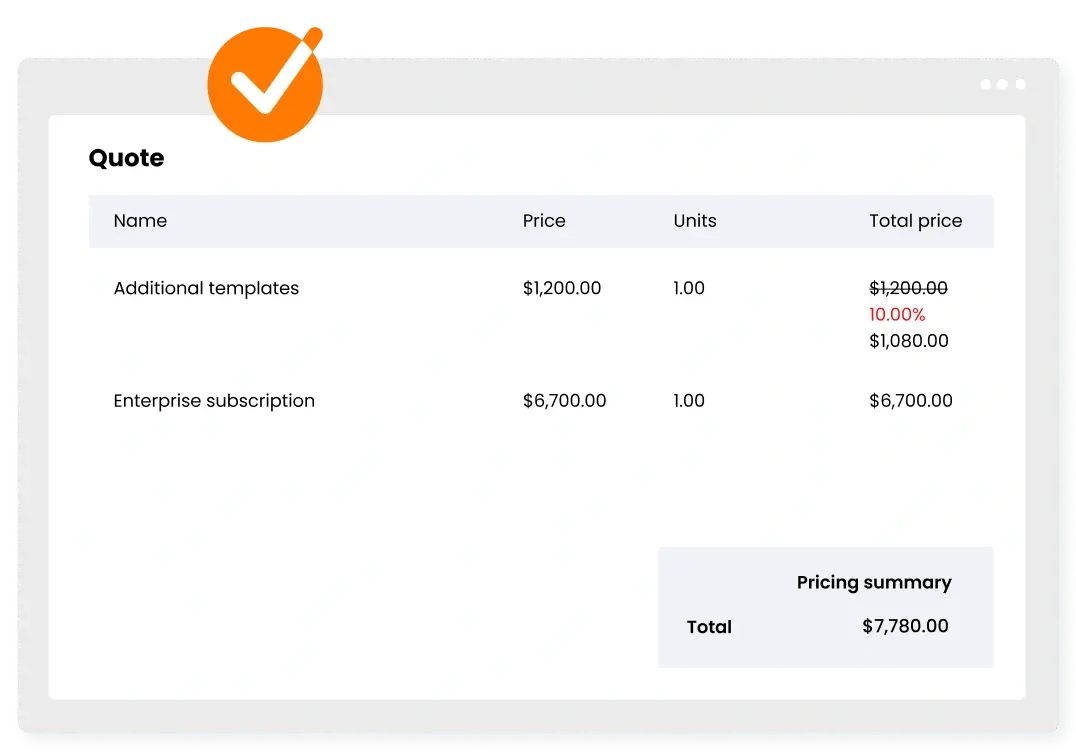
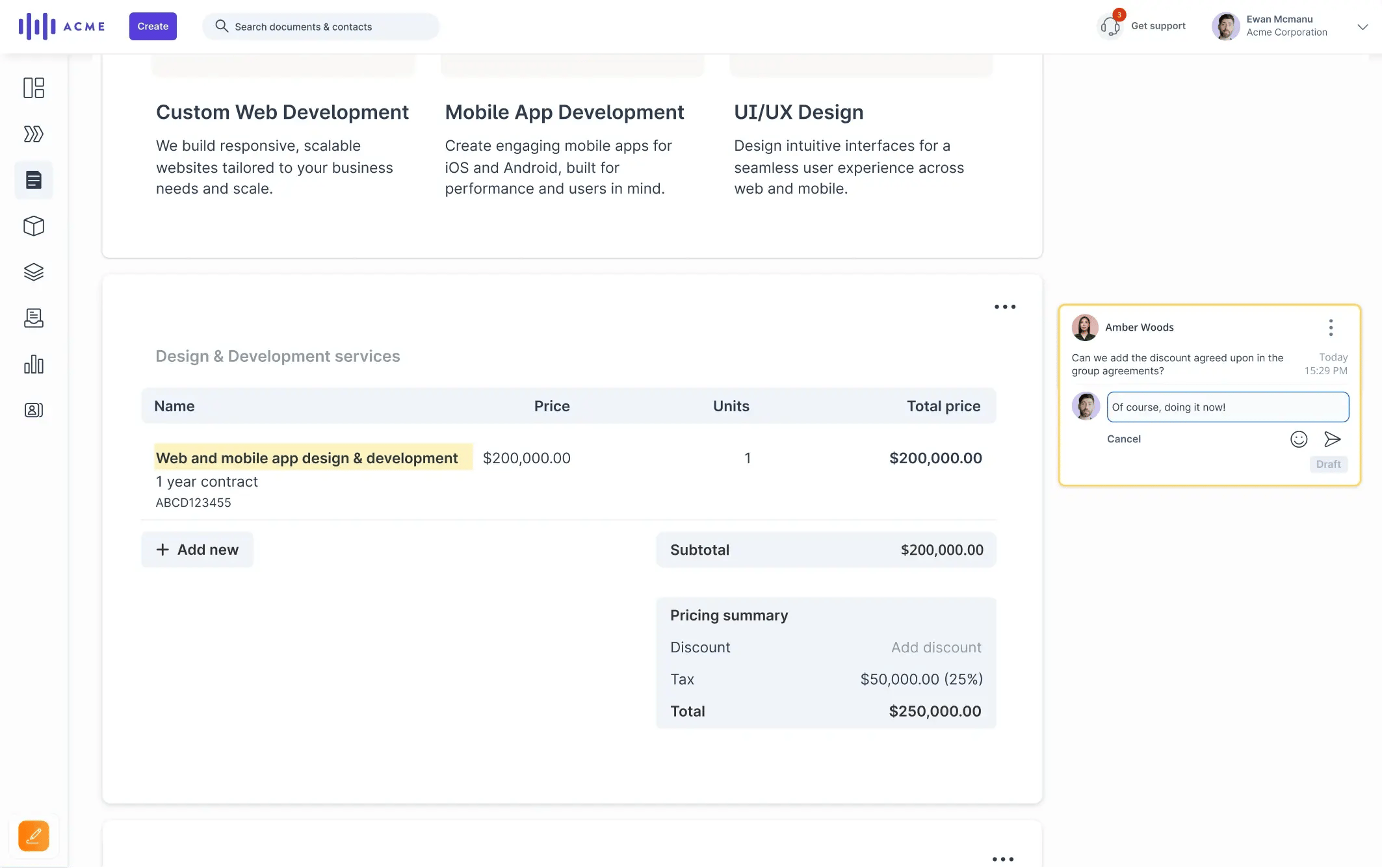
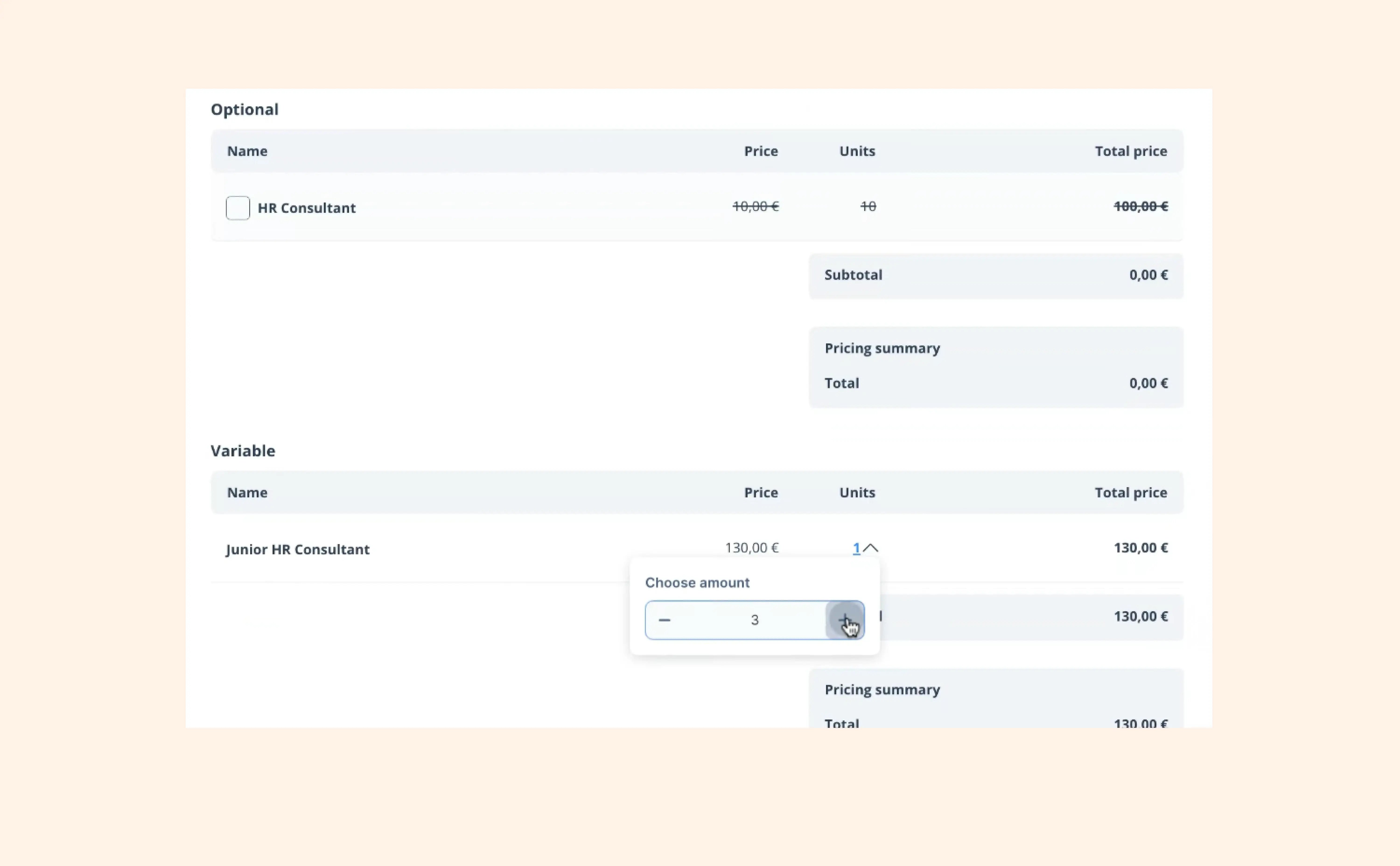
A pricing table is the element in the Editor that displays products, pricing, quantities, discounts, tax, and totals. You can add as many pricing tables in one room or document as you want, for example one for subscription and one for implementation, or one pricing table for each product your company sells.
Pricing groups
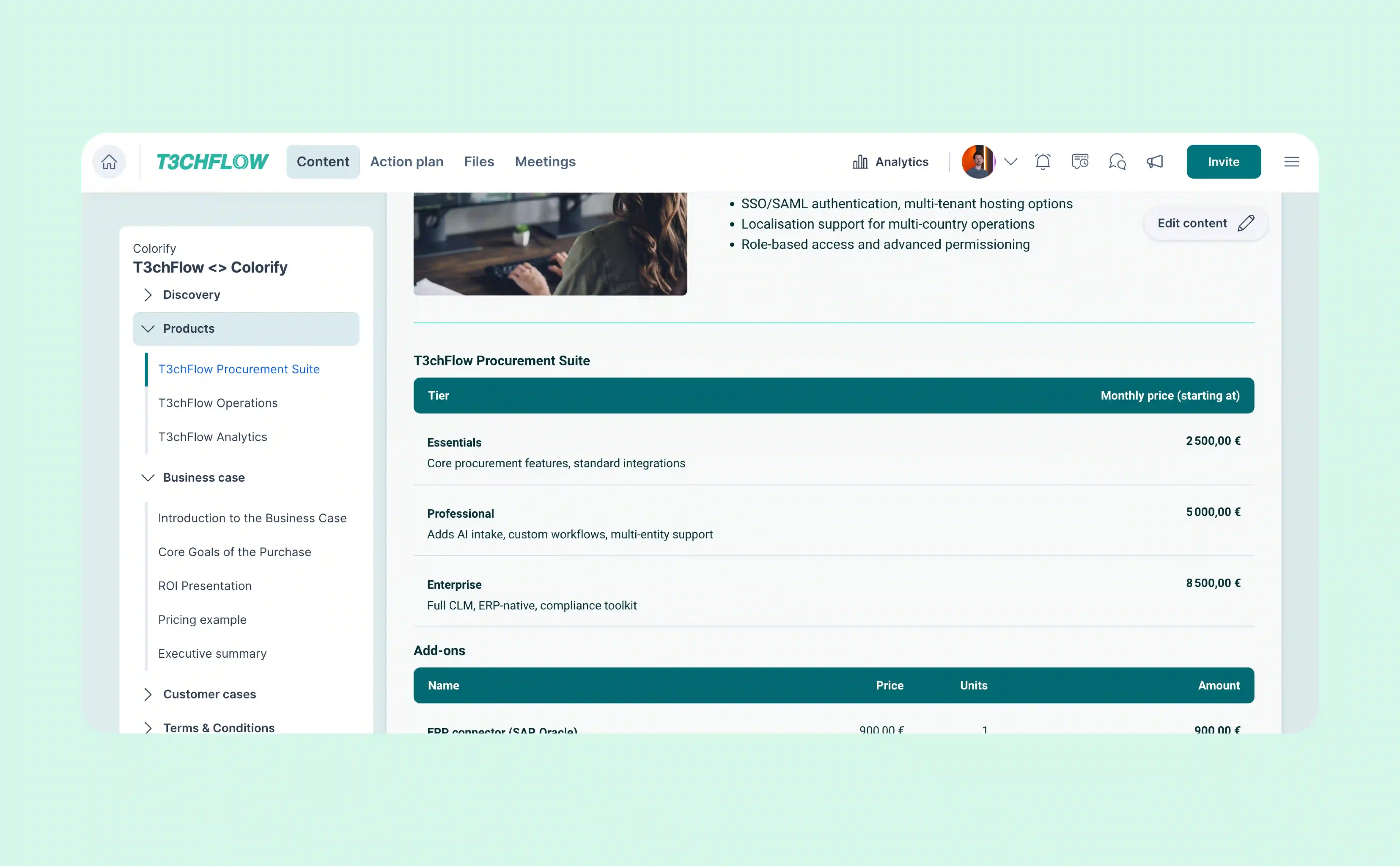
Pricing groups help you structure pricing into clear sections like Monthly subscription, One-off fees, or Add-ons. Each group can have its own subtotal and visibility rules.
The product library
The product library is where standardized products live (name, SKU, price, description, and custom properties like plan tier or included hours). Admins manage it so reps don’t need to rebuild pricing from scratch every time.
CRM integration
If you use a CRM integration (Salesforce, HubSpot, Microsoft Dynamics, Pipedrive, etc., or a CPQ setup), your CRM is usually the source of truth for product and pricing data. In that setup, GetAccept’s job is to present pricing clearly and consistently, using the structure you define in templates.
When to use the product library vs your CRM
This is the decision that saves admins the most time.
Use the GetAccept product library when
- You don’t rely on CRM as the system of record for products and price
- You want to maintain product and pricing data directly in GetAccept
- You want reusable products that reps can insert into pricing tables quickly
Example: A team sells a small number of standardized packages and updates pricing quarterly. They want admins to control the catalog inside GetAccept without touching the CRM.
Use your CRM as the source of truth when
- Your CRM already manages products, price books, quote line items, or CPQ rules
- Pricing is deal-dependent and should come from CRM logic
- You need the same pricing to show up in CRM reporting and proposals
Example: A sales team uses Salesforce as their CRM. Discounts, billing terms, and bundle rules are controlled in Salesforce, so proposals should reflect exactly what was produced in the CRM.
What “dynamic pricing” really means in practice
When your CRM is connected and your template is prepared correctly, pricing becomes far less manual.
Instead of a rep:
- copying product line items from the CRM
- pasting them into a pricing table in a room or document
- rechecking totals
- adjusting tax and discounts in multiple places
…your CRM can populate the right products into the right sections of your GetAccept pricing tables.
The result is not just speed. It’s consistency:
- fewer mismatched totals
- fewer “wrong version” pricing errors
- cleaner approvals and faster turnaround
Setting up pricing tables for CRM integrations
1. Build the table structure in your template first
Your CRM can’t populate a pricing table that doesn’t exist. Start by adding a pricing table element to a room or document template and decide how many pricing tables you need.
Example:
- Table 1: Monthly subscription
- Table 2: One-time fees and services
2. Name your pricing tables for mapping
For integrations, table names matter. You’ll typically map CRM line items to specific pricing tables based on table name.
Best practice:
- Use clear, unique table names
- Keep naming consistent across templates
- Treat names as configuration, not copywriting
3. Add pricing groups that match how your CRM data is organized
Pricing groups are often how you separate recurring vs one-time items, or map different product families.
Example:
Within “Subscription pricing,” you might have groups like:
- Core platform
- Add-ons
- Support
If your CRM separates products in a similar way, mapping becomes much easier.
4. Decide where calculations should happen
In some CRM and CPQ setups, the CRM is responsible for totals, discounts, and tax logic. In that case, you may want to turn off automatic calculation in GetAccept to avoid conflicts.
The key idea: avoid having two systems compute the same totals in different ways.
How to make pricing tables clearer for buyers
A correct price is not enough. Buyers also need to understand what they’re paying for.
Here are a few ways to make pricing tables easier to read and easier to approve:
Use product descriptions that explain value
Instead of “Implementation,” write “Implementation - includes onboarding workshop and configuration support.”
If you use the product library, you can standardize these descriptions so reps don’t have to rewrite them every time.
Add product properties for important details
Product properties help you display structured information buyers care about, such as:
- Plan tier
- Billing cycle
- Included support hours
- Number of seats
- SLA level
Example:
A buyer sees “Included support hours: 20” directly in the table, instead of hunting for it in a separate section.
Use pricing table summaries when you have multiple pricing sections
If your proposal includes separate tables (subscription and one-off services), a pricing table summary can pull them into one clean view near the end of the document.
This is especially helpful near the signature section where buyers want a final “what are we agreeing to” total.
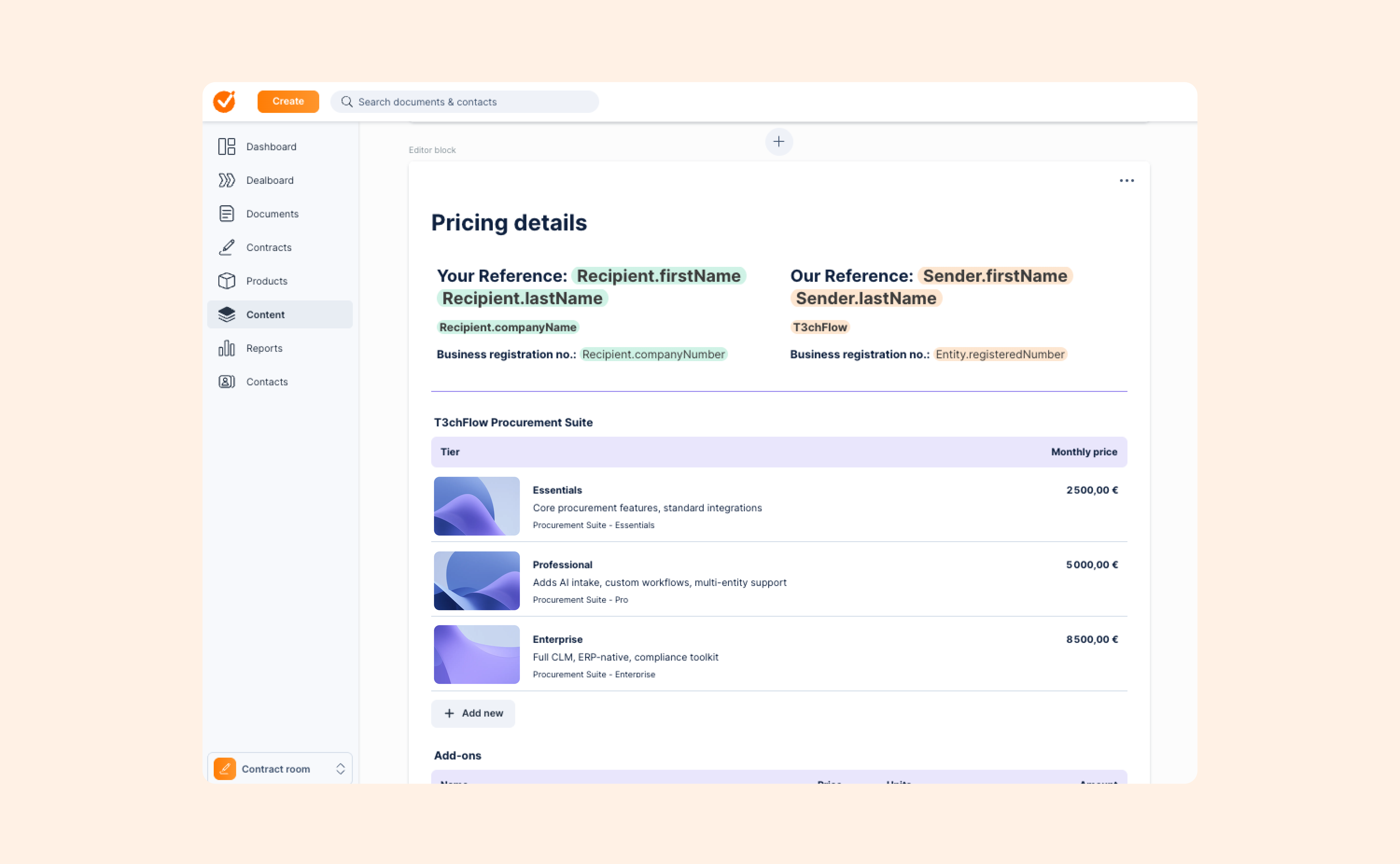
Add product images when it helps buyers recognize what they’re buying
Images can be useful for packaged plans, add-ons, or physical components. Admins can attach images in the product library so they appear automatically in pricing tables.
Control pricing changes with locking
Admins often want reps to be able to customize the offer, but not break pricing rules.
Locking pricing tables helps admins set boundaries:
- Templates can ship with locked tables by default
- Authorized users can unlock when needed for exceptions
- You keep control over pricing integrity, especially in standardized quotes
This pairs well with CRM-driven pricing because it reduces “quick edits” that create mismatches between CRM and the proposal.
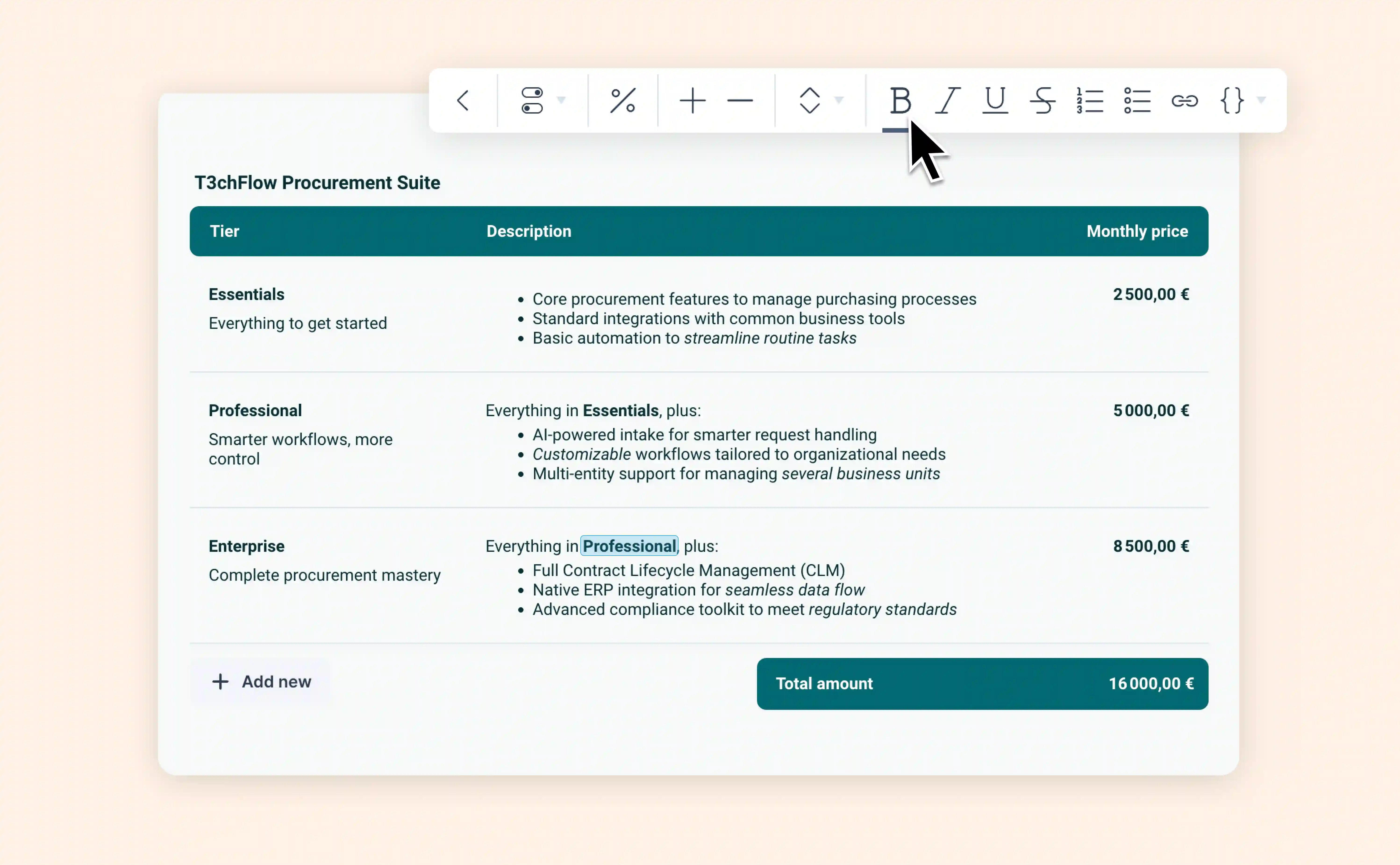
Example in practice: T3chFlow
T3chFlow had a common problem: pricing lived in way too many places.
Reps attached product line items to opportunities in the CRM, then retyped the same line items into pricing tables in GetAccept. Totals occasionally drifted, and services were grouped differently depending on who created the document.
The admin team fixed it by standardizing the system:
- They aligned the CRM product families to two pricing groups: Subscription and Add-ons
- They created a template with two pricing tables and named them for mapping
- They ensured the CRM integration populated products into the correct tables and groups
- They added product properties like “billing cycle” and “included onboarding hours” so buyers could understand the offer faster
- They locked the tables by default so pricing stayed consistent across reps
Reps spent less time rebuilding quotes, and managers spent less time reviewing pricing errors. Buyers also asked fewer clarification questions because the proposal showed structure and totals clearly.
Recap
By completing this lesson, you should now understand that:
- Pricing tables are only as reliable as the product data behind them
- The product library standardizes items when GetAccept is your catalog source
- CRM integrations can populate pricing tables dynamically, but only if templates are set up correctly
- Table and group naming matter for mapping and consistency
- Product properties, summaries, tax breakdowns, and locking help you create pricing that is easier to understand and harder to mess up