


Why setup matters
Configuring your GetAccept entity properly shapes how buyers perceive you.
When your logo, colors, and sender details are clear and consistent, you signal credibility before a buyer even opens your sales content.
A few minutes spent setting things up properly can make a big difference in how confidently buyers engage with your Deal Rooms and Contracts.
Personalize your profile
Start by updating your personal details.
Add your full name, title, a professional photo, and a short, friendly bio so buyers can put a face to the name.
If you share meeting links, include your calendar so prospects can book time directly.
Your profile appears in emails, Deal Rooms and Contracts, so it’s one of the easiest ways to build trust right from the start.
Bring your brand to life
Next, review your company information and branding.
Add company details such as name, address, business registration number, and website.
This allows you to use that information automatically in your sales content through dynamic tags, saving time and ensuring accuracy.
Then, customize your brand identity:
- Upload your logo (SVG or PNG for best results)
- Select brand colors (main and accent)
- Choose fonts for headings and body text
- Adjust colors for buttons and other elements
- Add a background – choose a solid color, gradient, or image
Keep your visual style simple and aligned with how your company looks on your website or in other materials.
Consistent branding helps buyers instantly recognize your company and gives every proposal a professional, cohesive feel.
Pro tip: Want to add some seasonal flair? Create a festive theme to give your sales content a cheerful look during the holidays – all with one click. 🎄❄️
Customize your content experience
Branding themes apply across all sales content in your workspace.
If you want to fine-tune specific pieces, for instance, if you want to make a certain section in your proposal stand out, we recommend creating section and block presets.
These presets let you define visual rules for colors, text, and backgrounds.
Both sales reps and admins can apply them to templates, Deal Rooms, and Contracts, balancing creativity with brand control.
Polish the first impression for your buyers
The first impression your buyer gets is your email.
You can customize standard email templates for document sendings and notifications, and even pick a header color that matches your brand.
Immediately after that comes the lobby – the welcome page before entering a Deal Room.
Here, you can adjust the logo, colors, and background so that the experience feels fully aligned with your brand identity.
Structure your team and permissions
Once your visuals are in place, make sure your team setup supports collaboration.
Admins should manage templates, entity settings, and permissions, while sellers focus on creating and sending documents.
This structure reduces risk, prevents off-brand materials, and ensures everyone works within clear boundaries.
Assign users to teams to keep things organized, and deactivate and remove users who no longer need access – for example, when someone changes teams or leaves the company.
Test your setup
Before going live, do a quick test.
Create a Deal Room and visit it as if you were the buyer. Send a document to yourself.
Check how everything looks and feels, from the colors to the profile photo to the tone of your message.
Fixing small details now helps every future buyer experience feel seamless, consistent, and trustworthy.
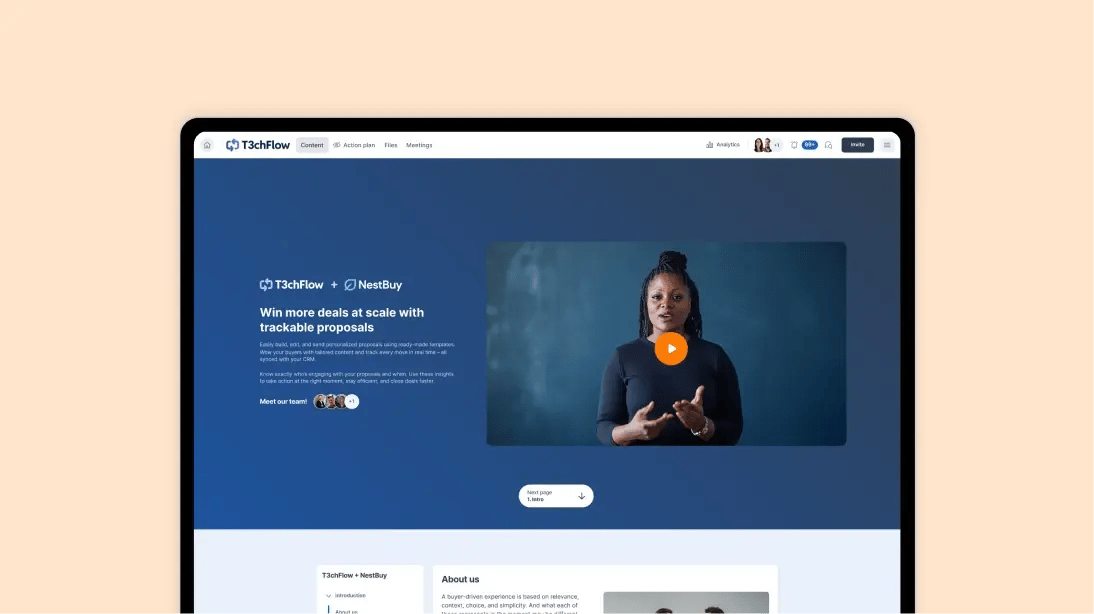
Example in practice: T3chFlow
At T3chFlow, every rep used to send proposals that looked slightly different.
Some used outdated templates, others changed colors or forgot to include their contact details.
Buyers noticed the inconsistency and sometimes questioned whether the messages were genuine.
After aligning on a shared brand theme and assigning clear permissions, every Deal Room carried the same professional look.
The right colors appeared everywhere, reps’ profiles were up to date, and communication felt unified.
As a result, buyers recognized T3chFlow immediately and responded faster to proposals.
Recap
By completing this lesson, you should now understand that a well-configured GetAccept entity sets a professional standard for your entire team.
- Consistent branding builds recognition.
- Clear user permissions reduce confusion.
- A polished profile makes every interaction feel personal and trustworthy.
Set things up once – and every deal after that benefits.