


Put GetAccept to work in your AI
GetAccept MCP server connects Claude, ChatGPT and any other AI assistant that supports MCP to GetAccept's Digital Sales Room platform. Ask anything about your deals, rooms, documents and calls, then let your AI handle the follow-through: building and tailoring rooms, publishing them, chasing signatures and keeping mutual action plans current.

Connected in two minutes
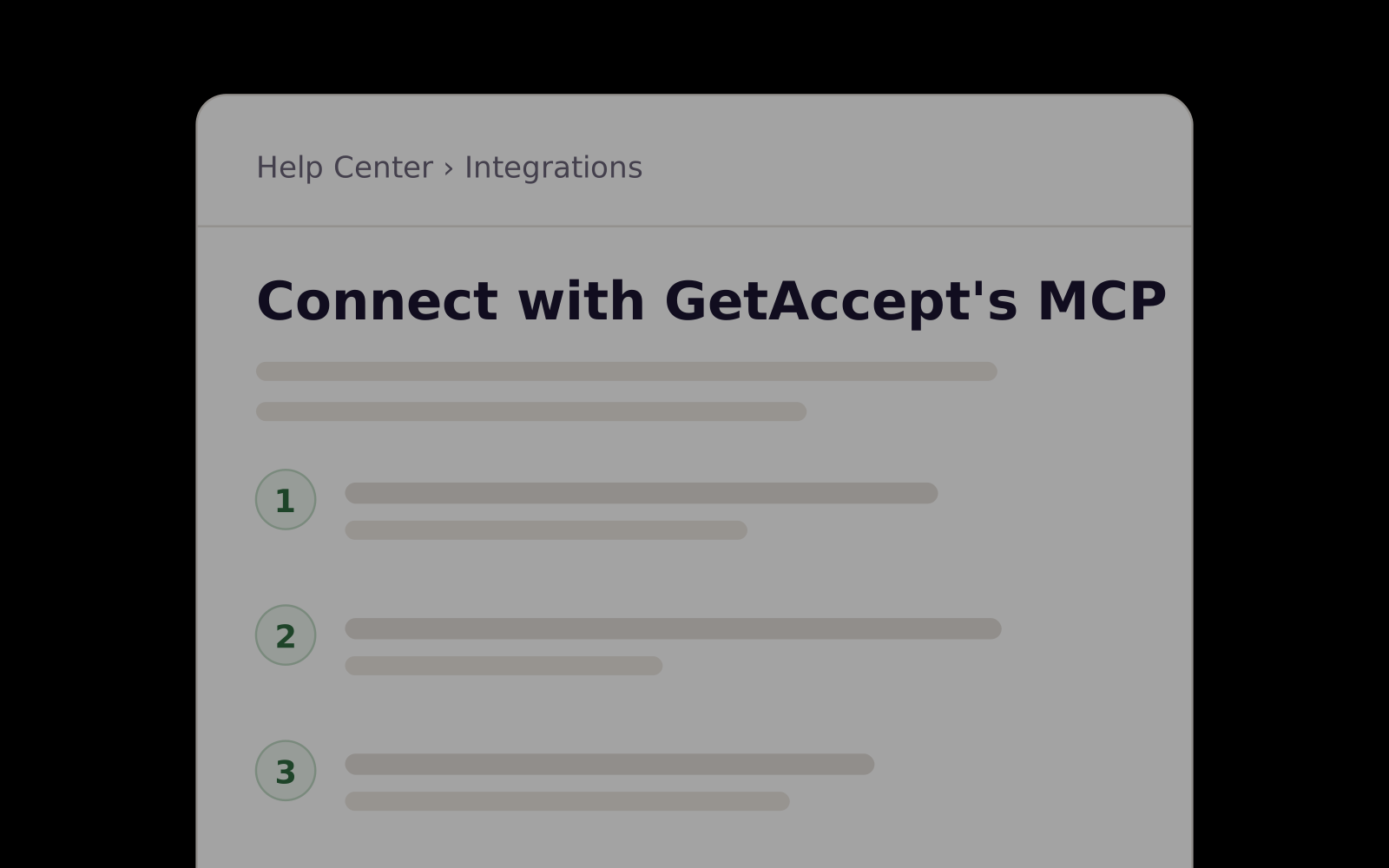
No code and nothing to install. Pick your AI, add GetAccept and sign in with your usual GetAccept login.
Also works with any AI that supports MCP connectors.
-
Customize›Connectors›Browse
 Connect
Or add it by URL:
mcp.getaccept.com/mcpSettings›Apps & Connectors›CreateNameGetAcceptMCP server URLhttps://mcp.getaccept.com/mcpSettings›Connected Apps›Add a custom appNameGetAcceptMCP server URLhttps://mcp.getaccept.com/mcpConnectors›Add Connector›Custom MCPNameGetAcceptMCP server URLhttps://mcp.getaccept.com/mcpStep 1Add GetAccept
In Claude, open Customize › Connectors and connect GetAccept from the directory. On Team and Enterprise plans, an owner adds it first.
In ChatGPT, turn on developer mode under Settings › Apps & Connectors, then create a connector with the GetAccept URL.
In the Gemini web app, open Settings › Connected Apps and add a custom app with the GetAccept URL. For now, personal Google accounts in the US.
In Mistral's Le Chat, open Connectors and add a custom MCP connector with the GetAccept URL. On team plans, an admin adds it first.
-
Claude wants to use your GetAccept account
- See what you can see in GetAccept
- Make changes when you allow it
Step 2Sign in to GetAccept
Sign in with your usual GetAccept login and approve access. The AI never sees your password.
-
Which of my deals went quiet this week?
Connected to GetAccept
Step 3Try it
Start with “Which of my deals went quiet this week?” and go from there.
Don't have an account yet?
Sign up nowAsk anything about your deals
Rooms, documents, action plans and recorded meetings: ask about any of it, in one conversation.

Ask across your whole pipeline: which deals stalled, who went quiet, what's overdue, which proposals nobody opened. For example, this week's priorities in one question.
What the buyer said about budget, who read the proposal, what's still open in the action plan. Answers come straight from the deal's room, documents and recorded meetings. For example, a full brief before your next call.
See how calls score against your framework and where deals keep slipping, with the exact quotes behind it. For example, coaching notes from this week's scored calls.
Say it once. The follow‑up is done.
Send reminders, log calls, and keep action plans and the knowledge base current, all from the conversation you're already in.
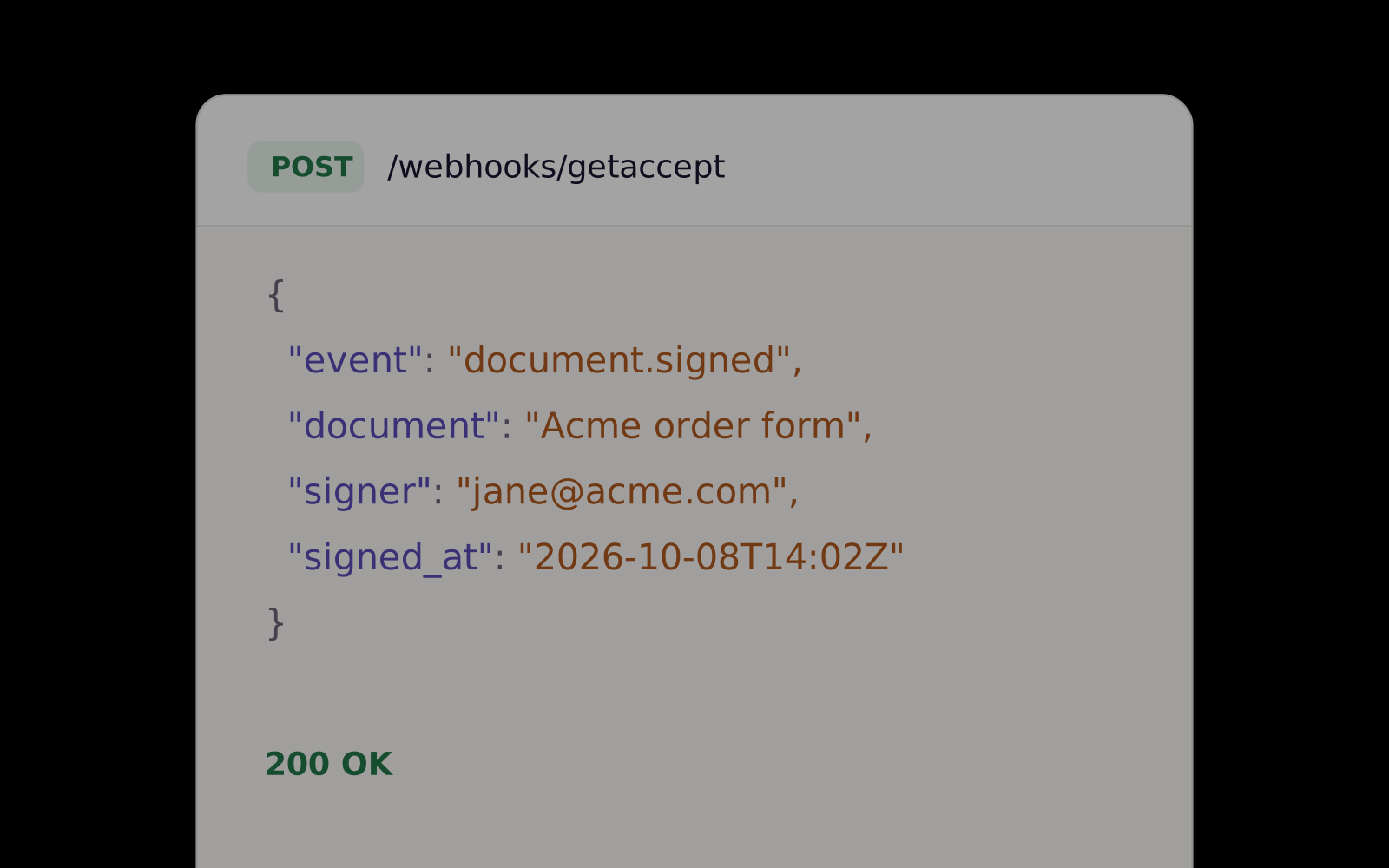
Send a reminder, invite a new stakeholder, publish the room. Whatever moves the deal forward happens in one message, once you approve it. For example, unsticking a signature that's waited since Monday.
Log calls, tick off tasks, move milestones and add files, so the room always shows where things stand for your team and your buyers. For example, tell your AI how the call went and the room updates itself.
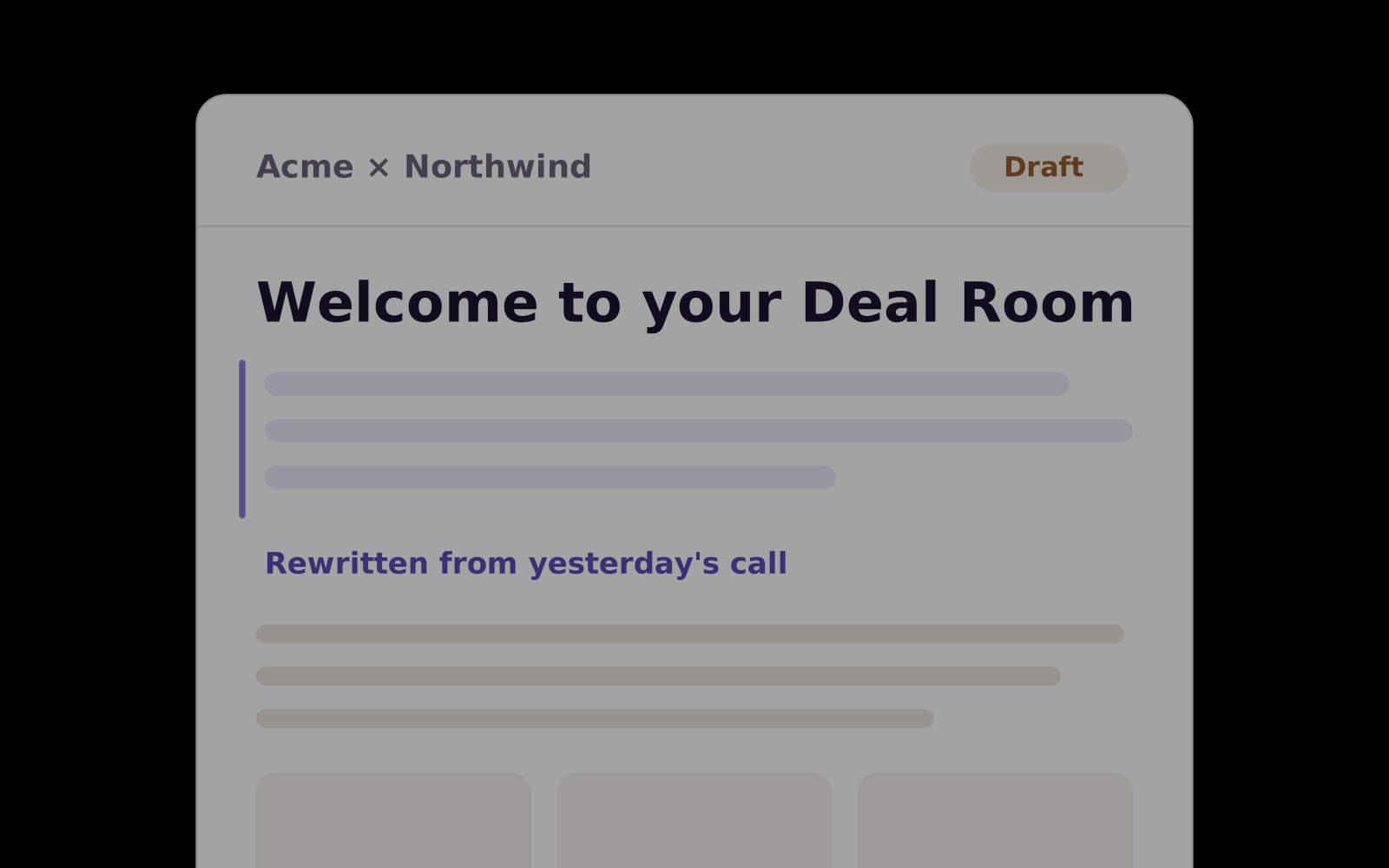
Tailor room pages to the latest conversation and keep the knowledge base GetAccept AI writes from current, so nothing outdated reaches a buyer. For example, replacing last year's price list in one request.

You decide what your AI can do
You stay in charge of your deals and your buyers. Your AI sees only what your GetAccept login can see, and changes only what you allow.
-
Approve once, or always allow what you trust
-
Your password never leaves GetAccept
-
Rooms stay private until you publish them
-
No buyer is contacted unless you say so
Just ask. Your AI picks from 50+ GetAccept actions.
Write the way you would brief a colleague. Your AI picks the right GetAccept tool, checks with you before changing anything, and reports back what it did.
Questions teams ask first
What it sees, what it changes, and how you stay in control.
Try it on your next deal
See it on your own deals in a demo, or connect GetAccept and find this week's priorities in one question.